Guides AI engineering
Raspberry Pi Voice Calls with a SIM7600: Build an AI Phone Assistant
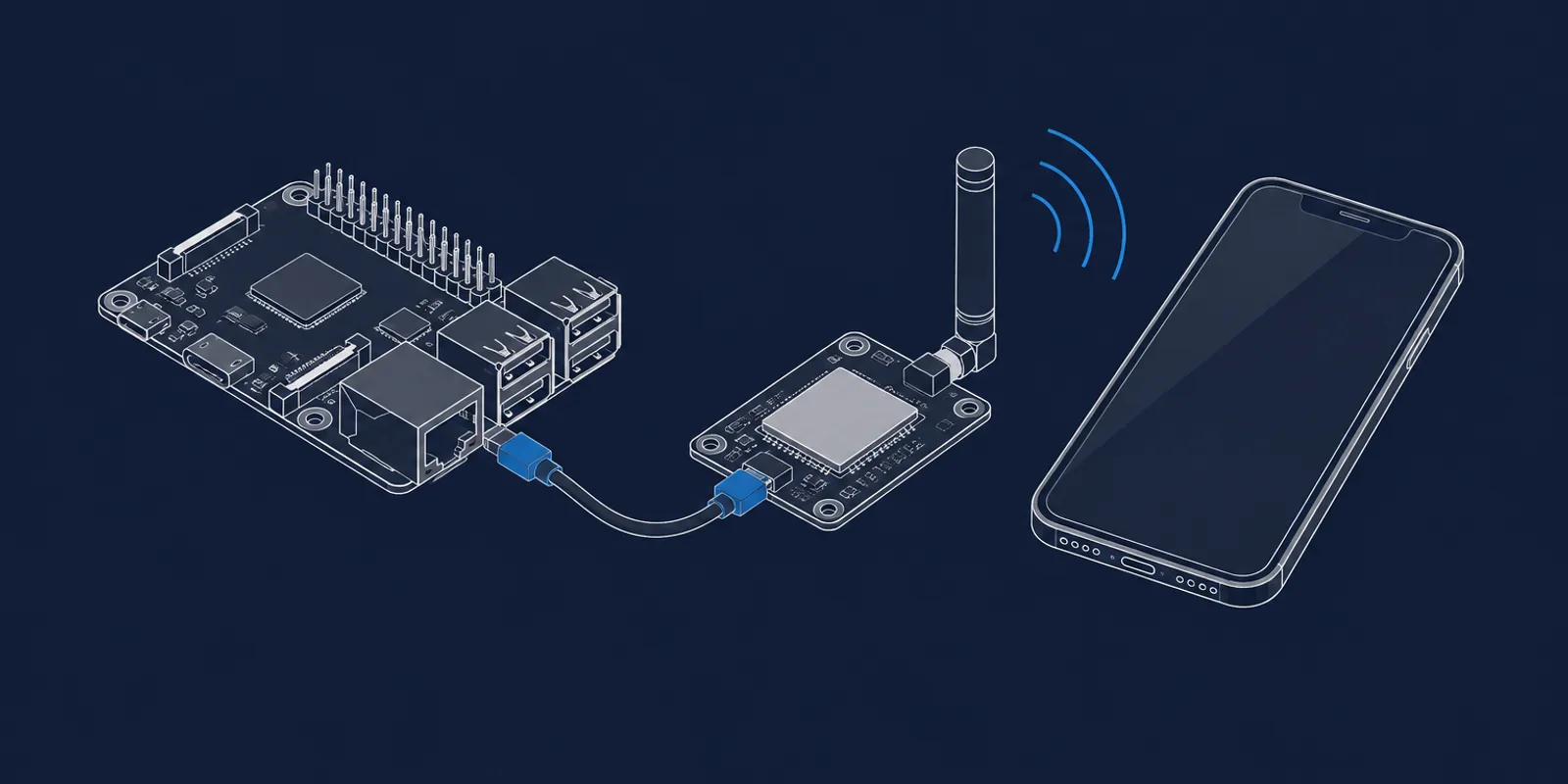
Step-by-step guide to making real phone calls from a Raspberry Pi with a SIM7600 4G USB modem and Python. It covers the AT commands, call audio over USB, and a complete script that connects the call to speech-to-text, Claude and text-to-speech.

- Level
- Intermediate
- Steps
- 11
What you will have
One Python script that calls a phone number, listens to what you say, answers out loud in about five to six seconds, and hangs up cleanly so the next call works.
What you need
- Raspberry Pi running Linux (I used a Pi 5 with Ubuntu)
- SIM7600E-H 4G module connected by USB
- SIM card with voice calling enabled
- Python 3 with pyserial, websockets and anthropic
- ffmpeg
- API keys for Anthropic, Deepgram and ElevenLabs
- A second phone to receive the call
Files
- voice_call.py 26 KB
The complete script. Keys are read from environment variables, so there is nothing to edit before you run it.
I built this so my assistant could call me while I drive. The modem is cheap and its commands are forty years old, but three things about it are not in any datasheet I found, and each one cost me hours. The steps below are in the order that avoids them.
The full script is in the Files box above. Every code block here is taken from it.
Install and set your keys
Install the Python packages and make sure ffmpeg is present.
pip install pyserial websockets anthropic
ffmpeg -version
The script reads its keys from the environment. Nothing secret goes in the file.
export ANTHROPIC_API_KEY="YOUR_ANTHROPIC_API_KEY"
export DEEPGRAM_API_KEY="YOUR_DEEPGRAM_API_KEY"
export ELEVENLABS_API_KEY="YOUR_ELEVENLABS_API_KEY"
Stop ModemManager
Most Linux systems run ModemManager, which grabs the modem’s serial ports the moment it is plugged in. While it holds them, your own commands collide with its commands. Stop it for the length of the call and start it again afterwards.
subprocess.run(["sudo", "systemctl", "stop", "ModemManager"], capture_output=True)
time.sleep(1)
The script does this for you, which is why it needs sudo.
Find the AT command port
The module shows up as five serial ports, /dev/ttyUSB0 to /dev/ttyUSB4. One of them takes
AT commands. The numbers can shift after a replug, so the script asks each port who it is: it
sends AT, waits for OK, then sends ATI and looks for the maker’s name.
def find_at_port():
    for port_num in range(5):
        port = f"/dev/ttyUSB{port_num}"
        try:
            s = serial.Serial(port, BAUD, timeout=0.5)
            s.reset_input_buffer()
            s.write(b"AT\r\n")
            buf = b""
            end = time.time() + 1.5
            while time.time() < end:
                chunk = s.read(256)
                if chunk:
                    buf += chunk
                if b"OK" in buf:
                    s.reset_input_buffer()
                    s.write(b"ATI\r\n")
                    buf2 = b""
                    end2 = time.time() + 1.5
                    while time.time() < end2:
                        chunk = s.read(256)
                        if chunk:
                            buf2 += chunk
                        if b"OK" in buf2:
                            break
                    if b"SIMCOM" in buf2:
                        return s
            s.close()
        except Exception:
            continue
    return None
On my unit the AT port was /dev/ttyUSB2 and call audio was on /dev/ttyUSB4. If your audio
port differs, set MODEM_AUDIO_PORT.
Clear the modem, then dial
A previous call that ended badly can leave the modem in a state where the next call has no audio. So before dialling, the script turns the audio channel off and hangs up, whether or not anything was active.
send_at(ser, "AT+CPCMREG=0")
send_at(ser, "ATH")
time.sleep(2)
Then it dials. The semicolon at the end of ATD is what makes it a voice call. Do not move on
until the modem reports VOICE CALL: BEGIN, which means the other side picked up.
def make_call(ser):
    send_at(ser, f"ATD{PHONE_NUMBER};", wait=1)
    for i in range(25):
        time.sleep(1)
        data = ser.read(ser.in_waiting or 256).decode(errors="ignore").strip()
        if "VOICE CALL: BEGIN" in data:
            return True
        if "NO CARRIER" in data or "BUSY" in data or "NO ANSWER" in data:
            return False
    send_at(ser, "ATH")
    return False
Turn on call audio
Audio does not flow until you ask for it, and the command only works during an active call. Send it after the call connects, then open the audio port.
send_at(ser, "AT+CPCMREG=1")
time.sleep(0.5)

audio = serial.Serial(AUDIO_PORT, BAUD, timeout=1)
audio.reset_input_buffer()
The port now carries raw audio in both directions: 16-bit signed samples, mono, no header.
Measure the sample rate
This is the first trap. The modem does not use a fixed sample rate. Everything I read said 8 kHz. My unit ran at 16 kHz, and the rate could change after a reset. Use the wrong one and you get voices at double or half speed.
Do not guess. Count the bytes that arrive in half a second.
count = 0
t0 = time.time()
while time.time() - t0 < 0.5:
    if audio.in_waiting:
        count += len(audio.read(audio.in_waiting))
    else:
        time.sleep(0.005)
bps = count / 0.5
detected = int(bps / 2)
if abs(detected - 8000) < 2000:
    SAMPLE_RATE = 8000
    FRAME_SIZE = 320
else:
    SAMPLE_RATE = 16000
    FRAME_SIZE = 640
Two bytes per sample, so 32,000 bytes per second is 16 kHz and 16,000 is 8 kHz. The frame size is 20 milliseconds of audio at whichever rate you found. Everything after this step uses those two numbers.
Play audio into the call
Write audio to the port one 20 millisecond frame at a time, and sleep 20 milliseconds between frames. While you write, throw away whatever arrives, or the incoming buffer fills up with your own echo.
def play_pcm(audio_port, pcm_data):
    for offset in range(0, len(pcm_data), FRAME_SIZE):
        if not call_active:
            return
        chunk = pcm_data[offset:offset + FRAME_SIZE]
        audio_port.write(chunk)
        if audio_port.in_waiting:
            audio_port.read(audio_port.in_waiting)
        time.sleep(0.02)
At this point you can already play a recorded greeting into a call. Convert any audio file to the right format with ffmpeg, using the rate you measured:
ffmpeg -i greeting.mp3 -ar 16000 -ac 1 -f s16le -acodec pcm_s16le greeting.rawListen: stream the caller to speech-to-text
Open a WebSocket to Deepgram and forward the audio frames as they arrive. Deepgram decides when the speaker has finished a sentence, so you do not have to detect silence yourself.
url = (
    f"wss://api.deepgram.com/v1/listen"
    f"?encoding=linear16&sample_rate={SAMPLE_RATE}&channels=1"
    f"&model=nova-2&language=en"
    f"&endpointing=300&utterance_end_ms=1000"
    f"&interim_results=true&vad_events=true"
)
headers = {"Authorization": f"Token {DEEPGRAM_KEY}"}
if audio_port.in_waiting:
data = audio_port.read(min(audio_port.in_waiting, FRAME_SIZE))
if data:
await ws.send(data)When a result arrives with speech_final set, you have the sentence the caller just said.
Think and speak: Claude to text-to-speech to the modem
Send the transcript to Claude and stream the reply. Do not wait for the whole answer. As soon as one sentence is complete, speak it, while Claude is still writing the next one. This is what keeps the delay short.
for token in stream.text_stream:
    collected += token
    pending_sentence += token

    for end_char in [".", "!", "?"]:
        if end_char in pending_sentence:
            parts = pending_sentence.split(end_char, 1)
            sentence = parts[0] + end_char
            pending_sentence = parts[1] if len(parts) > 1 else ""
            if sentence.strip():
                stream_tts_to_modem(sentence.strip(), audio_port)
            break
Speaking a sentence is a pipe: ElevenLabs streams MP3, ffmpeg converts it to raw audio at the measured rate, and the frames go to the modem exactly as in the previous step.
ffmpeg = subprocess.Popen(
    ["ffmpeg", "-y", "-i", "pipe:0",
     "-ar", str(SAMPLE_RATE), "-ac", "1", "-f", "s16le", "-acodec", "pcm_s16le",
     "pipe:1"],
    stdin=subprocess.PIPE, stdout=subprocess.PIPE, stderr=subprocess.DEVNULL
)
Keep the system prompt strict about length. On a phone call, one short sentence is the right answer almost every time. The script tells the model to stay under twelve words.
Hang up in the right order
This is the second trap. Turn the audio channel off first, then hang up.
send_at(ser, "AT+CPCMREG=0")
audio.close()
send_at(ser, "ATH")
ser.close()
subprocess.run(["sudo", "systemctl", "start", "ModemManager"], capture_output=True)
If you hang up first, the next call connects and the line is silent. The modem looks healthy
and answers every command, which makes this one hard to find. The script runs this cleanup in
a finally block so it happens even when something crashes mid-call.
The third trap: never reset the modem with AT+CRESET to recover. On my units the audio
command then reported success while no audio flowed at all, until the USB device was
disconnected and reconnected.
Run it
Download voice_call.py from the Files box and call your second phone.
python3 voice_call.py --number +15551234567Answer, wait for the greeting, and talk. Say “bye” to end the call. Expect a pause of about five to six seconds between the end of your sentence and the start of the answer.
To give the assistant a name and some background, set these before running:
export ASSISTANT_NAME="Ada"
export USER_NAME="Sam"
export ASSISTANT_CONTEXT_FILE="./context.txt"
There is also a task collector mode. With --triggered --task-file tasks.json the assistant
only takes notes during the call, and when you hang up it writes the tasks it heard to a JSON
file for another program to act on.
All 11 steps done.